You don't need middleware: Canvas course set-up with Google Forms, Sheets and Apps Script
I set up Canvas courses with tools we already had: a Google Form, a Google Sheet and Apps Script. No middleware, no developers.
I started with a form that could build a course as soon as a request arrived. That stayed in testing, for a reason worth knowing. The workbook I built next has now built two terms in production, roughly 300 courses.
If your institution has middleware and developers for this, you’re covered. Plenty don’t, and there it falls to someone like me: every course needs its shell, its sections and their IDs, its instructors, its tools, last term’s content and its settings, and the details arrive a piece at a time. You don’t need middleware to automate that. You may already have everything it takes.
Tools we already had #
We already had Google Workspace. A Google Form can collect a request. Its answers land in a Google Sheet. And Apps Script, which is built into the sheet, can call the Canvas (opens in a new tab) REST API. Nothing to install, no server, no extra licence.
I built it with a Claude Sonnet model, through Cursor, an AI code editor. As I remember it, I had a first working version in an afternoon or two, and I refined it over the next nine days.
The live form #
The first idea was the obvious one. A member of teaching staff fills in a form, and typically within a few minutes the course exists in Canvas and they get an email with the link.
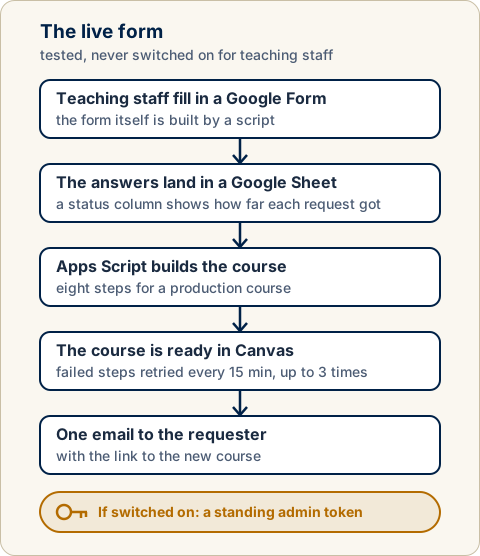
The live form on a good day: one request, one course, one email.
The sheet showed me how far each request had got. If something failed, the script retried that step rather than starting again, and only after three tries did it email the help desk. Canvas sent no enrolment emails along the way; once the course was ready, the script sent the requester one email with the link. Before copying old content, it checked that they actually taught the source course. Even the form itself was built by a script, so its design is kept in version control.
Why it stayed a proof #
It worked in testing. It was never switched on for teaching staff, and the reason is the most useful thing in this post.
We already had a course request form on the website, and it did two things my Google Form couldn’t. One person could request all their courses in a single submission; with my form’s simpler branching, that meant one form per course. And it serves more than Canvas. The same submission goes to the people who set up rooms and furniture, to the library for books, and to the office that arranges teaching assistants. I had built mine for Canvas only, to make my own work easier.
So the existing form stayed. A course request is rarely only a Canvas request, and whatever replaces the form has to serve every department that reads it.
If you want to try anyway, here’s an idea I haven’t built: one Google Form per course that asks every department’s questions, feeding one master sheet. A script watches that sheet, writes each department its own sheet with only its columns, and lets that department’s contact know when their sheet changes.
The bulk workbook #
So I turned the same steps around. Instead of a form starting each course, I fill in a workbook and run it as a batch. This is the one I use. It has built two terms in production, roughly 300 courses, and it has worked very well.
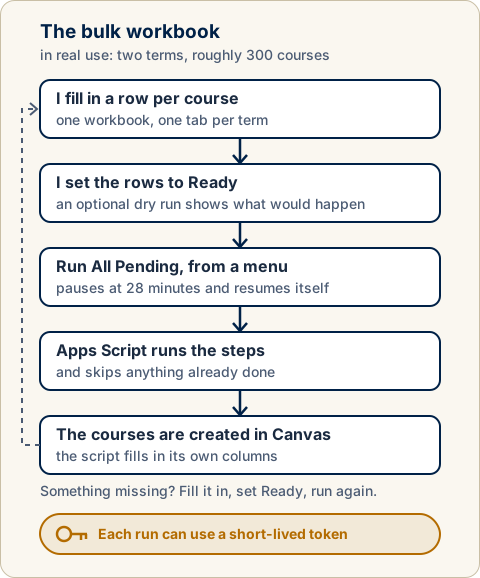
The bulk workbook: fill in the rows, run them, and run again whenever something new arrives.
It’s one permanent workbook, with a tab per term and a row per course. I fill in the rows, set them to Ready and choose Run All Pending from a custom menu. The input columns are mine and the output columns are the script’s, and every step checks its output first and skips what’s already done. That makes it safe to run as often as I like.
That matters, because information arrives late. If an instructor is still “TBD”, the course is created anyway, with a warning. When the name turns up, I fill in the cell, set the row back to Ready and run it again, and only the new piece happens. Before a run touches Canvas I can see what it would do, and I can rehearse in beta or test, each with its own token, then reset the rehearsal and go again. Long runs pause at 28 minutes, under Apps Script’s 30-minute limit, and pick themselves up.
The real choice: how long a token lives #
Both ways use the same step scripts. What differs is when the work starts, and that decides how long a Canvas admin token has to exist.
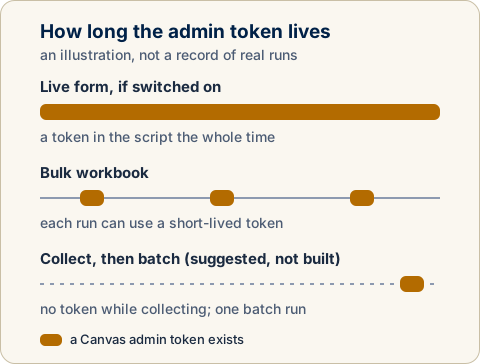
How long the admin token has to exist, in each approach.
The live form acts the moment a request arrives, so an admin token has to sit in the script’s properties all year. You can rotate it, but only now and then, and it’s always there. The workbook needs a token only while a run is going. If your security policy is stricter, create a short-lived token, run the batch and let it expire.
So they aren’t rivals. Put together, they make a third way that I’d recommend, though I haven’t built it: collect requests through the form all term with no Canvas token present, then run them as one batch with a short-lived token.
What real Canvas taught me #
Ten things caught me out along the way. If you build your own, tell your agent about them up front.
- Apply settings last. Copying content from an old course overwrote the new course’s time zone with the old one’s.
- The Tabs API ignored JSON. Hiding a navigation tab with a JSON body did nothing and reported no error. It needed a form-encoded body.
- The Roles API didn’t list everything. A custom role inherited from a parent account wasn’t returned from the sub-account, so the script couldn’t find it by name. I configured the role’s ID instead; Canvas needs both the base type and the role ID on the enrolment.
- Don’t use the status cell as memory. A failure wrote “Error” over the status, so the retry forgot what had been done, started again and hit “SIS ID already in use”. Now it decides what’s done from the evidence, such as a course ID or section IDs being present, plus a hidden “last completed step” column that errors never overwrite.
- Let creation cope with “already exists”. When a section’s SIS ID is already in use, it looks the section up instead of failing.
- Deleted courses keep their IDs. Canvas keeps a deleted course’s SIS ID reserved. To rehearse again and again, the reset renames the section IDs first, then the course ID, then deletes. A recovery tool does the same for courses already deleted.
- One missing assistant mustn’t fail a course. Only the primary instructor is essential. Other enrolment failures become warnings in the email, and the course carries on.
- Modules copied by migration lost their tool links. When modules are selected, they’re left out of the copy and rebuilt through the API, so links to external tools still work.
- Sheets stripped leading zeros. Course numbers are now a plain-text column, with zero-padding in the script as a second guard.
- Find the response sheet by its form link, not its position. “The first tab” broke as soon as a tab was added.
The one that got away #
In roughly 300 courses, one went wrong. It had five or six sections typed into one cell, separated by commas, and they weren’t split as intended, so that course’s sections weren’t linked together correctly. I never confirmed why.
The lesson: a list typed into a single cell is where a tool like this breaks. Test it with one item, two and six, with and without spaces, and show the parsed result in the dry run before anything is created.
Build your own #
I’m not releasing my scripts. They carry one institution’s sub-accounts, ID formats, roles, tools and form wording.
Instead, I’m releasing eight prompts that have your own AI agent ask about your set-up and build this for your Canvas and your Google Workspace, plus six short, generic example scripts that show the shape: settings per environment, one function for every Canvas call, a list parser with its own test, a step that’s safe to re-run, a run that pauses under the time limit, and a retry sweep. The kit also has all ten lessons above, plus the sections bug, in one file. They’re at github.com/kamaltaynaz/canvas-without-middleware (opens in a new tab). They’re examples, not my working files.
A few honest notes #
Apps Script has run-time and quota limits, which is why long runs pause and resume. The sheet is the database: that’s fine for hundreds of courses a term, but anyone who can edit the sheet can trigger changes in Canvas, so sharing it is granting that power. And this creates courses; it doesn’t sync student enrolments from your student information system.
The live form has only been tested, and the two ideas I’ve marked as suggestions aren’t built. There’s no independent code review on record, and I haven’t measured time saved.